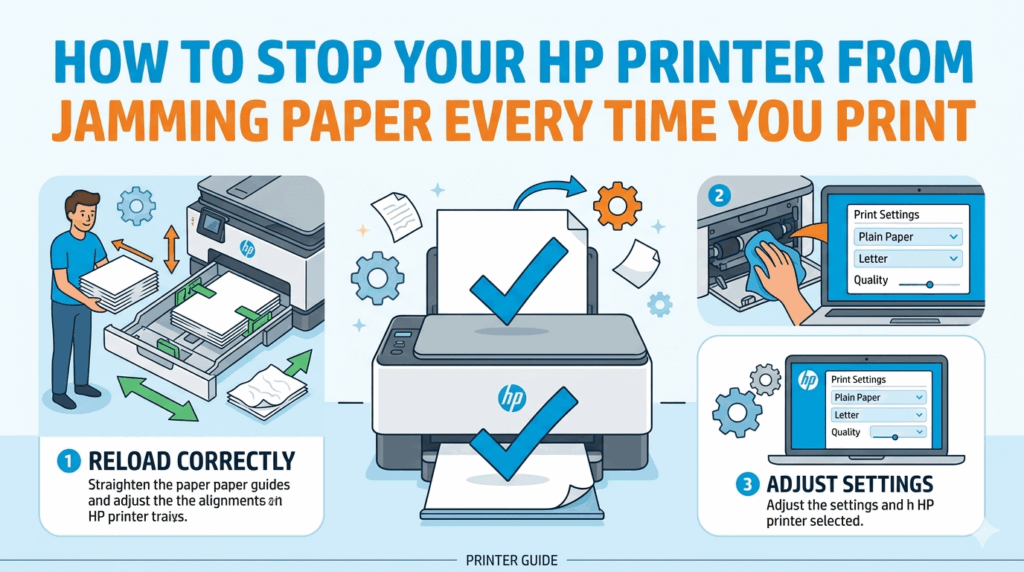
Paper jams are among the most irritating incidents that can occur during a critical print job. If your HP printer keeps jamming paper, it is alerting you that there is an issue. Neglecting this warning will only exacerbate the situation in the long run. Whether it happens every few prints or every time, this is a problem that needs to be addressed soon. Many users try quick fixes that work once but never address the real cause.
In such cases, reaching out to printer maintenance services can save you a lot of time and repeated frustration.
This guide covers the most common reasons behind repeated paper jams and what you can do to stop them for good.
Why Does an HP Printer Keep Jamming Paper?
Understanding the cause is the first step toward a lasting fix. When an HP printer keeps jamming paper, it is usually due to one of these reasons:
- Worn or dirty paper feed rollers that can no longer grip paper properly
- Using the wrong paper size, thickness, or type for your printer model
- Overloading the paper tray beyond its recommended capacity
- Small torn pieces of paper left inside from a previous jam
- Dust and debris buildup inside the paper path
- Misaligned paper guides in the tray that cause paper to feed at an angle
Remember, most of these causes are preventable. The key is knowing what to look for before the jam occurs.
Simple Steps to Fix and Prevent Paper Jams
Step 1: Clear the Jam Properly
When a jam occurs, never yank the paper out forcefully. Open all access doors, gently pull the paper in the direction it was feeding, and check every compartment for torn pieces. Even a tiny leftover scrap can trigger another jam immediately.
Step 2: Clean the Paper Feed Rollers
Rollers get dusty and worn over time, which is one of the biggest reasons an HP printer keeps jamming paper regularly. Lightly dampen a lint-free cloth with water and gently wipe the rollers. Let them dry completely before using the printer again. This simple step can make a noticeable difference.
Step 3: Load Paper the Right Way
Always fan the paper stack before loading it to prevent sheets from sticking together. Do not overfill the tray and make sure the paper guides are snug against the stack without squeezing it too tight. Using paper that matches your printer’s recommended specifications also matters more than most people realize.
Step 4: Check for Debris Inside the Printer
Use a flashlight to look inside the paper path and remove any dust, bits of torn paper, or foreign objects. Even something as small as a staple or paper clip can cause repeated jams that seem impossible to explain.
Step 5: Update Your Printer Firmware
HP occasionally releases firmware updates that improve paper handling and fix known feeding issues. Check the HP support website for your printer model and install any available updates. This is a quick step that is easy to overlook but often helps.
When Home Fixes Are Not Enough
If you have tried everything above and your HP printer keeps jamming paper without any clear reason, the issue may be mechanical. Rollers that are too worn to clean back to life, a misaligned paper path, or internal components that need professional attention are all beyond basic DIY fixes.
This is where proper printer maintenance services come in. A trained technician can inspect the internal components, replace worn parts, and recalibrate the paper feeding mechanism. Regular printer maintenance services also help you avoid these problems in the future by catching wear and tear before it turns into a bigger issue.
Conclusion
Repeated paper jams are not just frustrating — they slow you down and can eventually damage your printer if left unaddressed. Start with the steps in this guide and you will likely see an improvement right away. But if the problem keeps coming back, don’t keep forcing it. Your printer deserves proper care, and so does your time. Trusted experts at printerithelp.com have helped countless HP users put an end to jamming issues for good—and they can help you too.